About Product Authorization
After obtaining the software, it is necessary to register it online and then perform the authorization procedure. A watermark will appear in rendered images until the authorization process is completed.
Before Authorizing the Product
The demo version cannot be authorized. If it is installed, uninstall it and then install the product. The authorization requires you to be a registered user on the PSOFT website and to have registered your product's serial ID. If you bought the packaged version and are not yet registered on the PSOFT website, you will need to first perform user registration.
User registration / Login page: https://www.psoft.co.jp/user/en/
Download your purchase.
Log-in to the PSOFT user page with your log-in ID and password to download your purchase.
PSOFT User Page: https://www.psoft.co.jp/user/en/
[User Page Log-in] → [User/Top] → [Download]
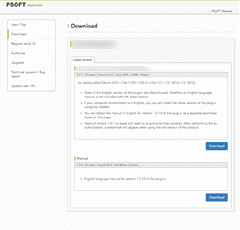
The download page
Install the product.
- Run the setup file to decompress it.
- Execute the setup file and proceed with the installation according to the directions of the setup program.
* If a different version of the product is already installed, please uninstall it before proceeding with the installation of the new version.
* If After Effects is running during the installation process, it is necessary to restart it after completing the installation.
* In some cases, the installation or uninstallation of the product may fail if a memory-resident antivirus software is active. In such cases, please temporarily disable the antivirus software (or other memory-resident software) while installing or uninstalling the product.
* The entry [PSOFT]/[anti-aliasing] will be added to the [effect] menu of After Effects by the installation program.
Installation and Product Authorization
Follow the steps below to complete authorization.
- Register your serial ID.
- Select your LAN adapter (Network interface controller).
- Get your machine code.
- Get your license key (On the PSOFT Website's User Page).
- Enter your license key.
- Authorization completed.
1.Register your serial ID.
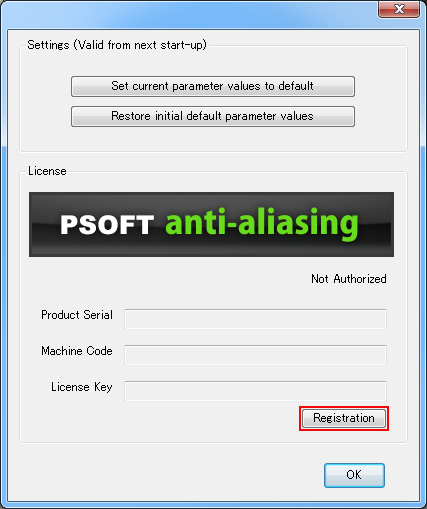
- Open the Options dialog.
Apply this effect in After Effects and click [Options] in the [Effect Control Panel] to open the [Options] dialog. - Open the Registration dialog.
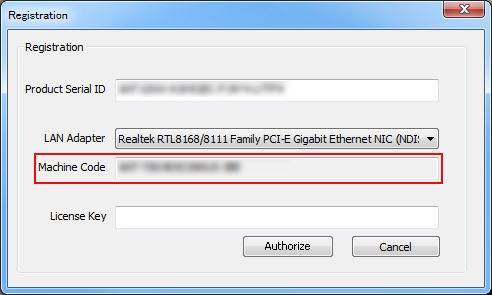
Click on [Registration] in the Options dialog to open the [Registration] dialog.
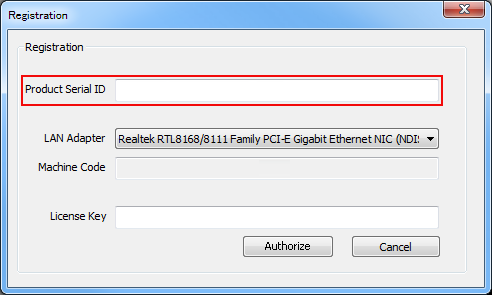
- Enter the product serial ID.
Fill in the field [Product Serial ID] in the [Registration] dialog.
2.Select your LAN adapter (Network interface controller).
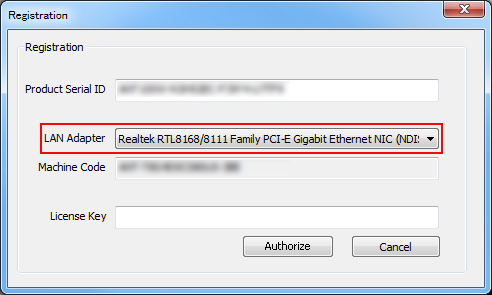
- Select your LAN adapter (Network interface controller).
If you have multiple LAN adapters installed, select an adapter that will not be removed when using the plug-in. The LAN adapter that is initially selected can usually be used without problem.
Caution: If the selected LAN adapter is removed or damaged, you will need to perform the authorization procedure once more.
3.Get your machine code.
- Get your machine code.
The [Machine Code] is displayed in the [Registration] dialog. You will need to enter this code on the user page to issue your license key.
Caution: The machine code will only be displayed when a valid product serial ID is filled in.
4.Get your license key.
- Log-in to the PSOFT User Page.
Use the following link to access the PSOFT website and log-in to the user page.
https://www.psoft.co.jp/user/en/ - Go to the [Issue License key] page.
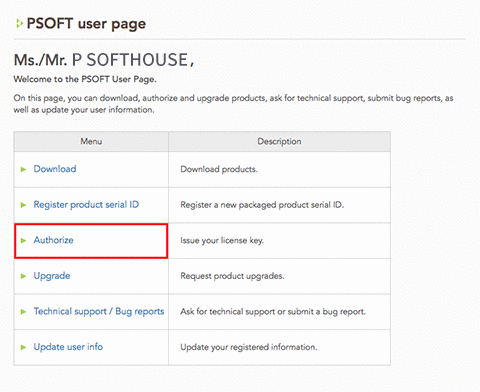
Select [Authorize] from the index on the user page.
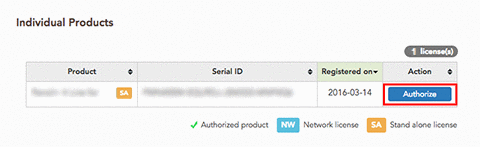
A list of your registered products and associated serial IDs will be displayed.
*If your product serial ID is not yet registered, start by performing the product serial ID registration.
Click the [Authorize] button of the entry matching your product to move to the [Issue License key] page.
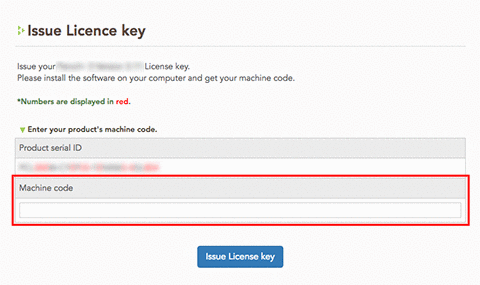
- Enter your machine code.
Copy the machine code from Get your machine code and paste it here, then click on the button [Issue License key].
- Copy your license key.
If Step 3 above is successful, a license key will be displayed. Select the key and copy it to the clipboard.
*The license key information will also be sent to your registered email address.
5.Enter your license key.
- Enter your license key.
Return to the plugin's [Options] dialog in After Effects, paste in your license key and click the [Authorize] button. - Authorization complete.
A success message is displayed when you complete the authorization.

6.Authorization completed.
*A watermark may remain in the project you used to perform the authorization. If that is the case, restart After Effects to make the watermark disappear.
