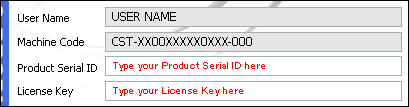
About Product Authorization
After obtaining the software, it is necessary to register it online and then perform the authorization procedure. The following restrictions apply to non-registered software.
*The demo version has different restrictions.
Limited number of executions.
The software can be executed up to 5 times with full functionality.
Restrictions after exceeding the maximum number of executions.
- The rendering function is disabled.
- Noise is added.
Installation and Product Authorization
Follow the steps below to complete authorization.
- Uninstall the demo version (only required if the demo version was previously installed).
- Download your purchase.
- Install the product.
- Get your machine code.
- Obtain and enter your license key.
*Please refer to the email from our company with the subject "[PSOFT-ORDER] Thank you for your purchase", sent to you when you purchased your product, for your log-in ID and password
(required to enter the User Page).
*Version notations in these images may differ from the ones you see on your product.
1.Uninstall the demo version.
- If you have installed the demo version, please uninstall it before proceeding with the authorization process.
2.Download your purchase.
Log-in to the PSOFT user page with your log-in ID and password to download your purchase.
PSOFT User Page: https://www.psoft.co.jp/user/en/
[User Page Log-in] → [User/Top] → [Download]
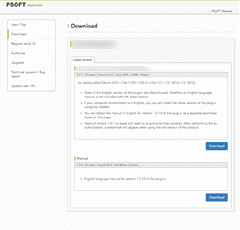
The download page
3.Install the product.
- Run the setup file to decompress it.

- Execute the setup file and proceed with the installation according to the directions of the setup program.

*If a different version of the product is already installed, please uninstall it before proceeding with the installation of the new version.
*In some cases, the installation or uninstallation of the product may fail if a memory-resident antivirus
software is active. In such cases, please temporarily disable the antivirus software (or other memory-resident software) while installing or uninstalling the product.
4.Get your machine code.
- Run CHRONOStream2.
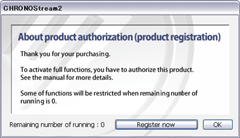
- Open the [About product authorization (product registration)] dialog box.

- Press the [Register now] button on the lower right.
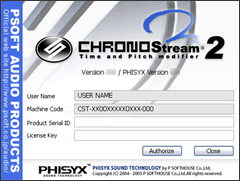
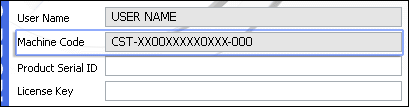
- A new window opens indicating product information.

[Displayed information] User Name [Your user name]
Machine Code [Your machine code]
Product Serial ID [Blank]
License Key [Blank] (Type your license key here). - The machine code displayed is necessary to authorize your product.


5.Obtain and enter your license key.
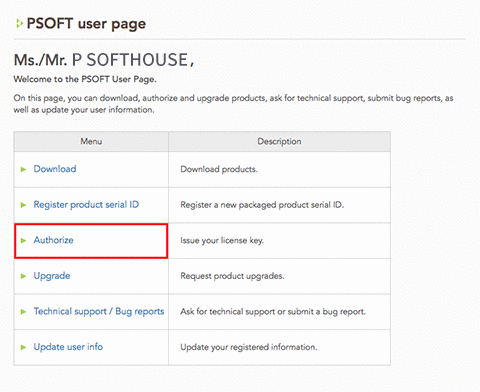
- Log-in to the PSOFT user page and select [Authorize] from the index.
User Page: https://www.psoft.co.jp/user/en/
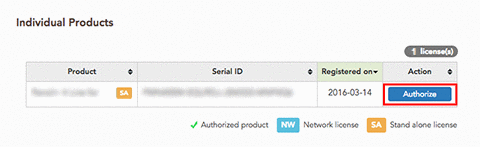
- Click the [Authorize] button of the matching product.

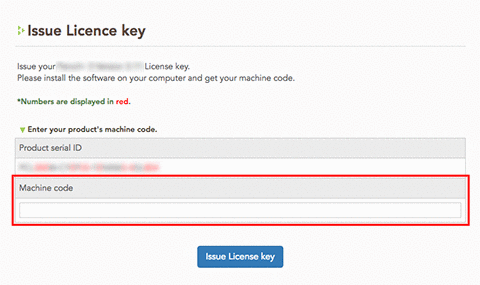
- Enter your machine code in the [Machine code] field. (You can simply copy and paste it).

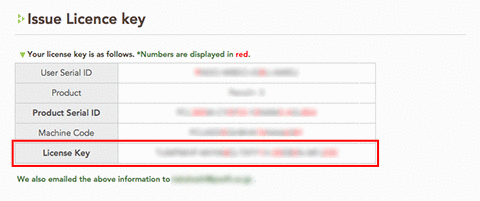
- Click the [Issue License key] button to obtain your license key.
(The key is sent to your registered email address as well).

- Enter the product serial ID and license key in the appropriate fields of the product information dialog box.
- Click the [Authorize] button.